
Guide
How SIM Leaderboard and the Lap Tracker work · What's new
Getting started
SIM Leaderboard records your laps live on the rig and puts the best ones on shared leaderboards, with the full telemetry of every lap to learn from. It works with F1 25, Assetto Corsa, Assetto Corsa EVO and iRacing.
Signed in, the guided setup takes you through these steps one at a time and ticks each one off by itself, up to your first lap on the board (also in your account menu).
- Create an account with your e-mail address (you get a code, no password needed). Your driver name is what others see on the boards.
- Install the Lap Tracker on the PC that runs the game: the SIM Leaderboard app for Windows. No SimHub needed; if you use SimHub, the setup adds our SimHub plugin so your SimHub dashes and lights keep working. Download and install steps.
- Connect your rig: the app's Home tab walks you through it with a tick per step. It checks that game data comes in; on the Connection tab Get a code shows a QR code: scan it with your phone while signed in, then click Yes, connect when the app asks whether it's you, and the rig is yours. (It asks so that nobody who only saw your code can take the rig.)
- Drive. Every finished lap is uploaded within seconds. Your best valid lap per board shows up on the site.
Only driving on someone else's rig? Then you don't need to install anything: see Rigs and friends.
Join our Discord (invite link): new records appear in #records the moment they're set, every update lands in #announcements, and #help is the place for questions about installing.
Which laps count
The Lap Tracker records every lap, valid or not, but only valid laps go on a leaderboard. One board is one track (and layout), one kind of session and one car or car class. You appear once per board, with your best lap. The Track menu at the top right of a board jumps to the same session and cars on another track.
- F1 25: the game decides whether a lap is valid (track limits, penalties). Time Trial laps go on the Time Trial boards; practice, qualifying and race laps on the Grand Prix boards. 2025 cars and 2026 Season Pack cars have separate boards.
- Assetto Corsa: a lap is invalid when more than two wheels leave the track or you drive through the pit lane. Modded cars and tracks only race against the exact same files, marked MOD.
- AC EVO: the game's own track limits decide, plus the pit lane rule.
- iRacing: iRacing decides (a lap with an off-track has no time), plus the pit lane rule. Fixed-setup and open-setup laps have separate boards, and so do laps on a wet track. More under iRacing.
- Out laps, restarted laps and laps you joined halfway don't count. Lap 1 of a race does: it is timed from the grid, as the game times it, and marked "standing start" on the lap page.
- Assists don't split the boards: they're shown per lap (for example TC 2, ABS 3) so everyone can see them. A lap gets the most help used at any point in it.
iRacing
The Lap Tracker reads iRacing's telemetry itself: just drive, there's nothing to set up in iRacing.
- Boards: one per track layout, session kind and car, split into Fixed setup and Open setup. Laps on a wet track have their own board: switch with Dry / Wet at the top of the board.
- Seasons: iRacing boards open on this iRacing season (cars and tracks change every season). "Last season" and "All seasons" are in the When menu; in All seasons, laps from earlier seasons are greyed out. Boards someone drove this iRacing week are marked THIS WEEK.
- Time Attack is iRacing's Time Trial: its laps go on the Time Attack boards. Driving into the pits in Time Attack ends the lap (iRacing black-flags it).
- Incidents: every lap shows the incident points you picked up in it (0x is a clean lap); your profile shows your incidents per 100 km.
- Conditions: the lap page shows the sky, how wet the track was and the track and air temperature.
- Map and replay: iRacing doesn't share car positions while you drive, so the Lap Tracker works them out from speed and heading. The map is close, but not exact: the corner table leaves out racing-line advice for these laps. Laps imported from iRacing's own telemetry files have the exact positions, and they also help measure the track's real edges and kerbs for everyone's maps (anonymously, like F1 laps).
- Corner names: on tracks that are also F1 circuits (Suzuka, Spa, Monza, Silverstone…) corners get their official numbers and names, and on Okayama and Tsukuba the turns from the circuit's own map.
- Your setup (open-setup laps) is saved with the lap and shown on its lap page, only to you: setups you bought stay private.
- Shared rig, several iRacing accounts: link each person's iRacing account to their driver once in the Lap Tracker (Drivers tab, "iRacing account on this PC"). From then on, iRacing sessions pick the right driver without asking. Only a scrambled code stays on the PC, never the account itself; nothing about your iRacing account is sent to us.
- Laps driven without the Lap Tracker: turn on iRacing's telemetry recording (Alt+L in the car). Then either press "Import iRacing telemetry files" in the Lap Tracker (files of a linked iRacing account), or upload the files on the site: Upload iRacing files (in the menu under your name). The files are in DocumentsiRacing elemetry. Laps get the car's exact positions; laps already on the site are skipped. Only your own files: the first upload ties that iRacing account to you. Free accounts upload 5 files a day, Pro 30; with Pro every lap from your files keeps its telemetry, Free keeps it for the lap that puts you on a board.
- Race pace: on a race board, My laps shows each race with your pace, consistency, whether you got faster or slower, and your incidents.
- TC and ABS aren't recorded for iRacing: their settings mean something different in every car.
- We never show your iRacing name, customer id or iRating: you race under your SIM Leaderboard driver name.
Switching drivers
Several people can drive on one rig. Every lap belongs to whoever was selected when the car crossed the line.
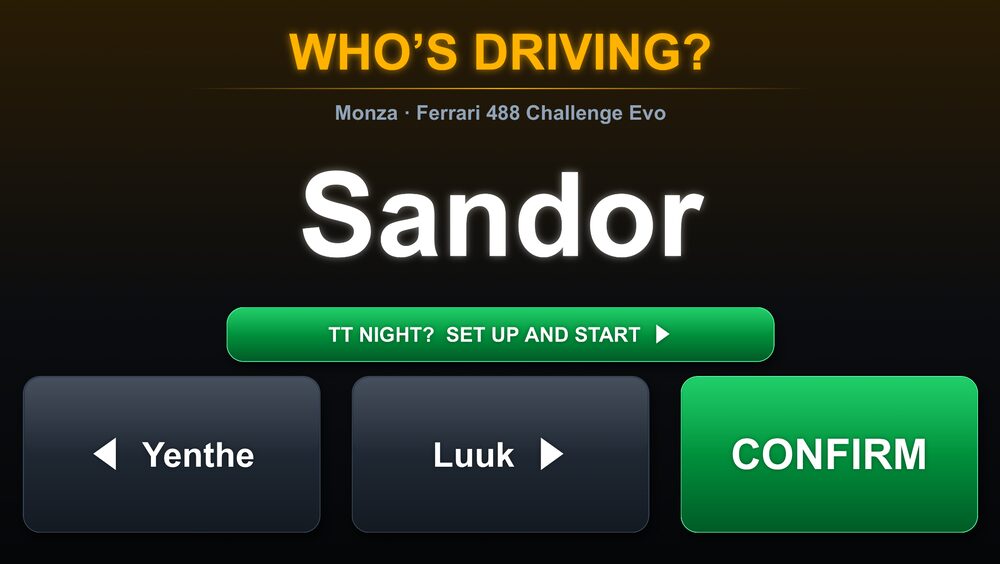
- "Who's driving?" pops up on the dash at the start of each session (with two or more drivers lined up). Confirm with a tap, or it closes by itself at the first line crossing.
- Wheel buttons (F1 25): map UDP Action 2 in the game's controls to switch to the next driver, and UDP Action 1 to throw away the current lap.
- Phone: the phone dash has driver buttons. With SimHub, you can also map the Lap Tracker's actions to any button in SimHub's controls.
- Forgot to switch? The rig's owner clicks Change driver next to the lap in My laps (or Wrong driver? under the rig's name on the lap's page), then picks who really drove it (anyone who joined the rig, or one of its guests). The boards of both drivers are updated, and the driver who loses the lap gets a notification. In the Windows app, Change driver on the Laps tab does the same for the laps on that PC.
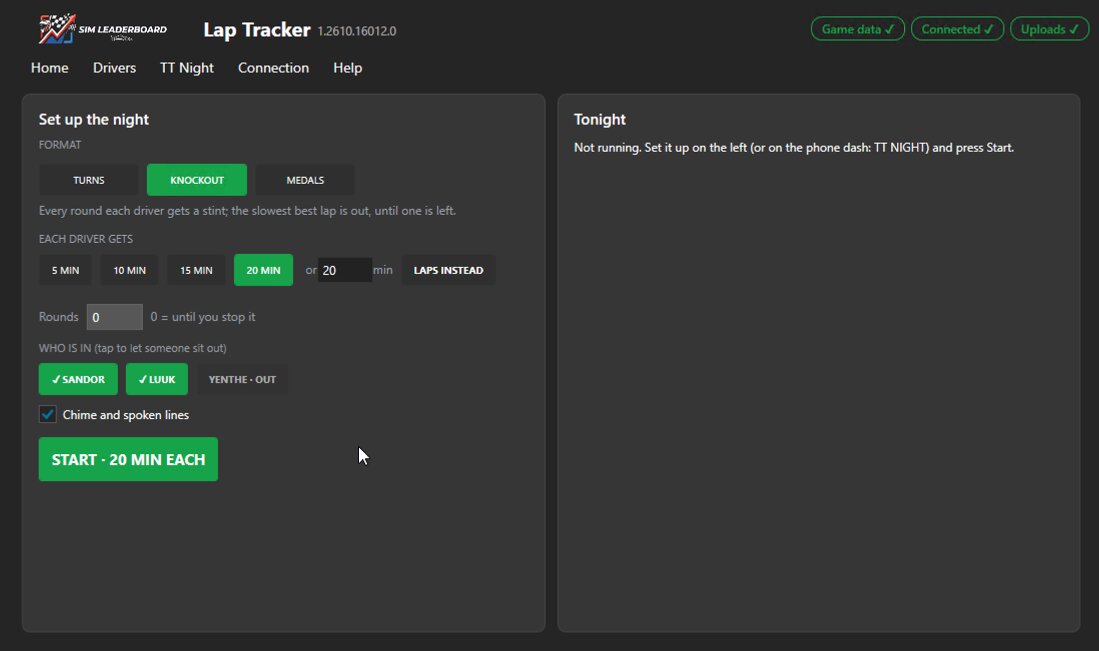
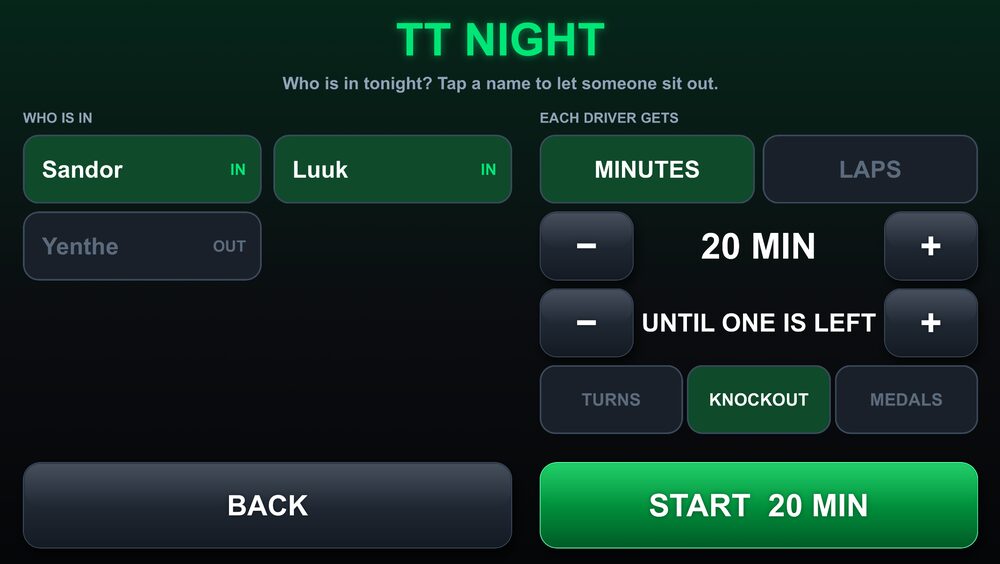
- Stint timer: everyone takes turns with the same time behind the wheel, in minutes (5, 10, 15, 20 or any number you like) or in laps. On the phone dash, tap TT NIGHT with the driver buttons: tap the names of anyone who isn't there tonight (they're skipped), pick minutes or laps, the length and the number of rounds, and press Start. You can also start it on the Lap Tracker page. The countdown shows right after the driver's name and only runs while the car moves. A minute before the end you hear a warning; at zero a chime: finish the lap you're on, it still counts. After the line the dash says whose turn it is; pause or restart, swap seats, and the next driver is selected by itself once the car stands still. Next driver on the wheel or dash hands over straight away. Lost time to a crash or a slow restart? While the night runs, +1 on the TT Night screen (dash, app or iPhone) gives the driver in the seat one more minute (or lap), also after the time is up; −1 takes one off. Only that stint: the next driver gets the normal length.
- TT Nights on the site: a night with the timer shows up under TT Nights (in the menu under your name), live while you drive: who's driving and the time left, standings over the whole evening (per track the fastest valid lap scores 25, 18, 15…), and per track everyone's best lap, best sectors, ideal lap, average, valid laps and warnings. The rig's owner can share a night with a group, so friends at home can follow. Each night hands out titles (winner, closest fight, steadiest, most improved, cleanest, most laps, track limits tester), and Copy recap gives a summary to paste into your group chat. Free keeps your latest five nights; with Pro every night stays, plus your head-to-head record against everyone you raced.
- Formats: on the TT Night screen pick Turns (points per track), Knockout (after every round the slowest best lap is out, until one driver is left) or Medals (per track gold, silver or bronze against the board's record: within 1 %, 2.5 % or 5 %). In Time Trial with two or more drivers lined up, the "Who's driving?" screen has a TT NIGHT? button that takes you straight there.
The phone dash
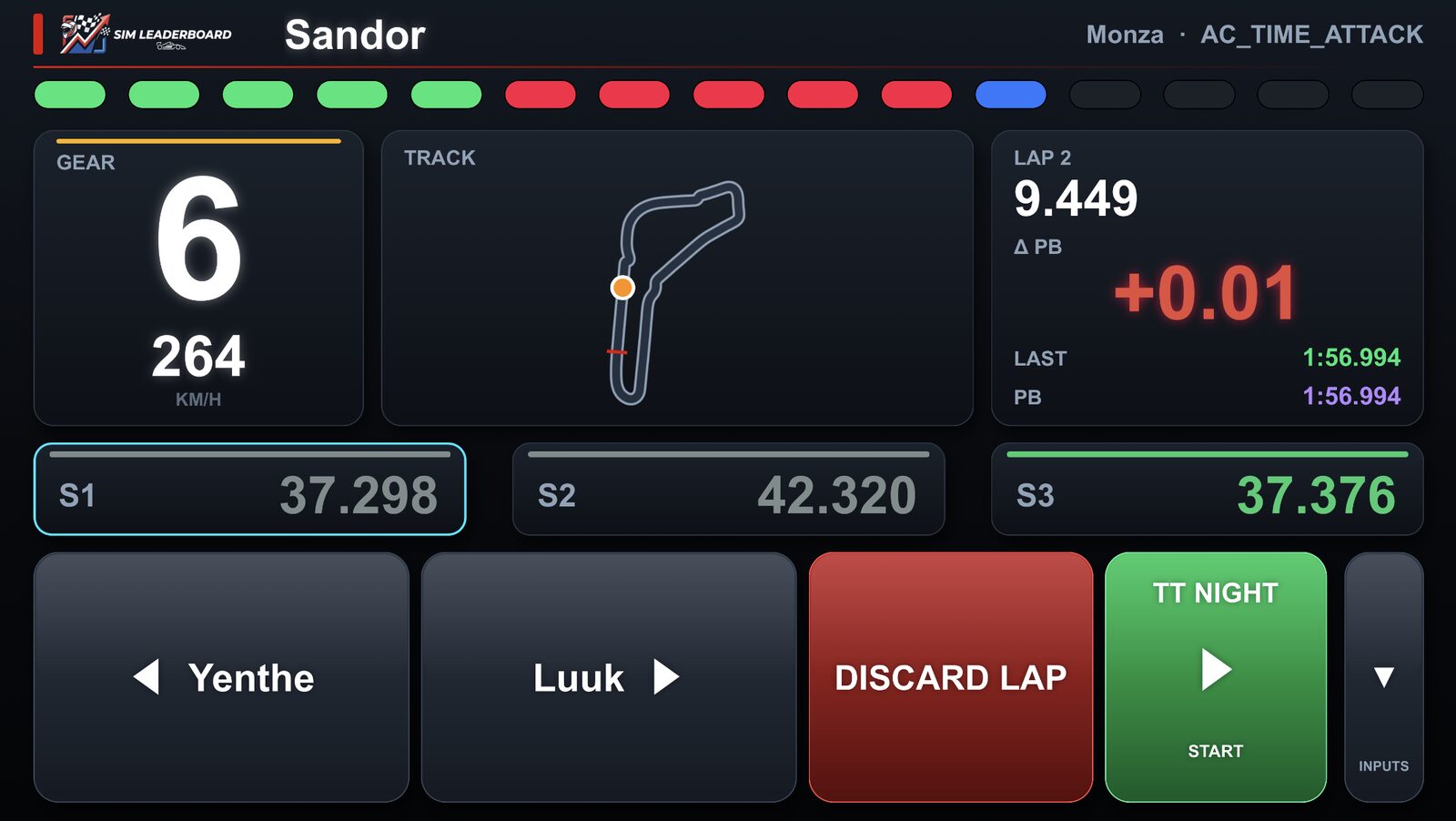
The app has dashes for your phone or tablet: gear and speed, sector times, a live delta to your best lap, throttle/brake/steering bars and a track map, in several layouts and skins.
- Phone and rig on the same Wi-Fi. The QR code on the app's Dashes tab opens the dash picker; pick one and hold the phone sideways. Swipe left or right for the next dash. (With the SimHub plugin: SimHub's dash SIM Leaderboard Phone.)
- The top bar is the rev lights; the right block shows the lap time, the live gap to your best lap (green = faster) and your last and best lap.
- Next to it, P1 shows who leads the board you're driving for, with your live gap to their lap (needs the rig connected to your account; F1 25 for now). It updates after every valid lap of yours.
- AC EVO: the game sends no sector times, so the dash splits the lap in thirds and compares each with your best lap. EVO has no track map of its own in SimHub: the Lap Tracker draws one from the start of the session when anyone has driven that track (any car), else after your first full lap there.
- The small button on the right switches between the inputs and the driver buttons.
The on-screen overlay
The Windows app can put your targets on the PC's screen while you drive, in a see-through box at the top (Elite). Switch it on on the app's Overlay tab, or from the iPhone app under Drive → Your rig → Overlay.
- Who it's for: when the rig's owner has Elite, the overlay is on for everyone who drives that rig, guests too. A driver with Elite of their own has it on any rig they're part of.
- Rows: P1 of the board you're on, your PB, your fastest friend and the fastest member of each group you tick, each with the lap time, the live gap at this point of the lap and the sector times (green: your sector this lap was faster). Friends and groups need an account; a guest sees P1 and their PB on this PC.
- Who's driving: a green light with the name of the driver in the seat, above the rows.
- Mini-sectors: a strip under the box cuts the lap into 26 pieces. Green: as quick as the lap you compare with or quicker, red: slower, purple: quicker than P1 too. Compare with your PB, P1 or tonight's fastest TT Night lap (Overlay tab or the iPhone's Overlay page); without that lap yet, your PB, then P1.
- TT Night: while a night runs (Pro or more on the rig), the box starts with tonight: the round, who's driving and who's next, the stint clock, the standings with points, and your live gap to tonight's fastest lap. It says when it's time to swap seats and who won the night.
- Where: left, middle or right at the top of the screen you pick, in four sizes. The game has to run in Borderless or Windowed mode: full screen and VR draw over it.
- Streaming: the Overlay tab gives an address for an OBS Browser source that shows the same box, see-through.
Leaderboards
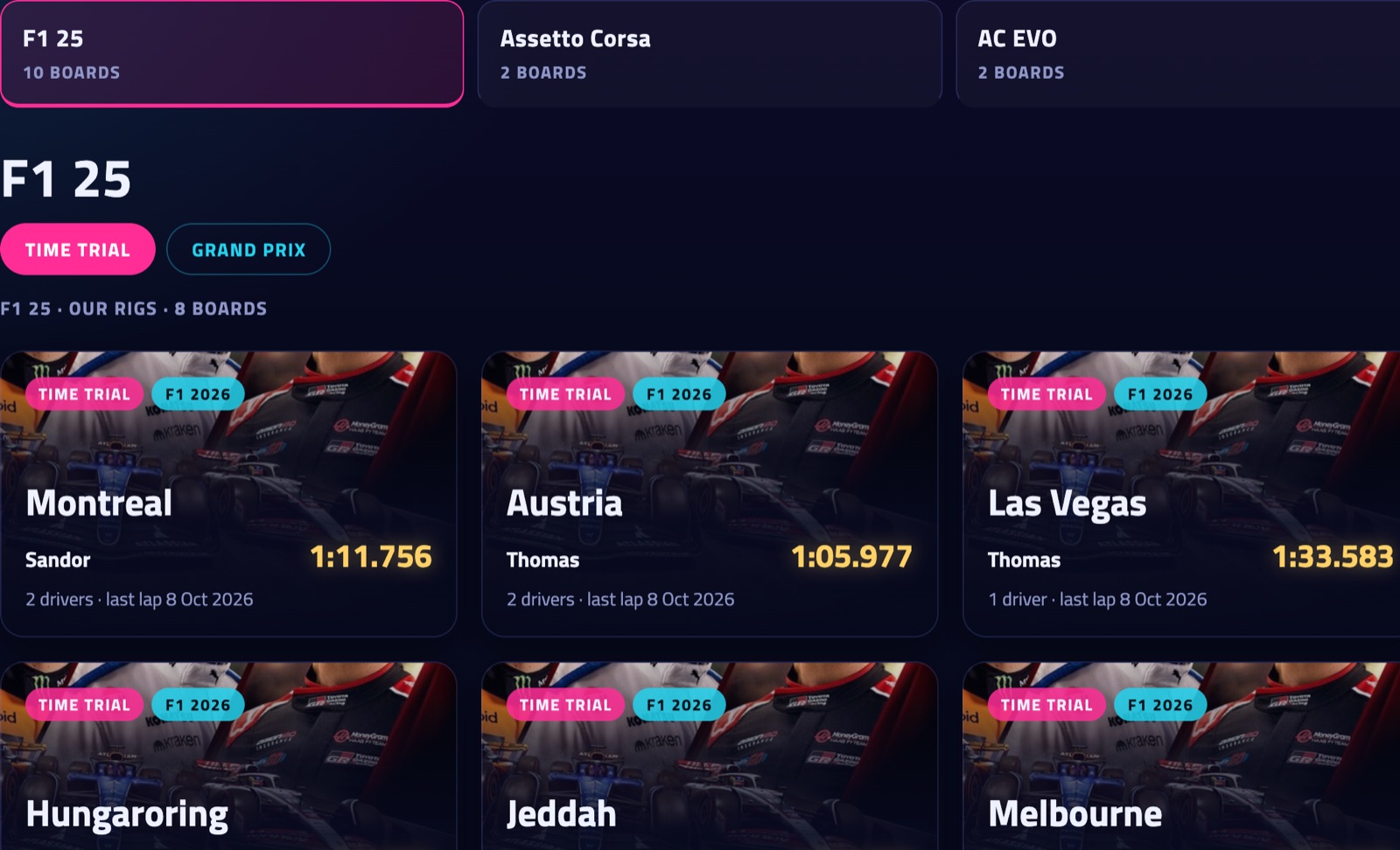
The home page has a page per game (the tiles at the top) and per kind of session (Time Trial / Hotlap, Grand Prix / Race weekend). Each card is a board: the track, the cars and the current leader. Boards update live.
- PC · Console · Crossplay (F1 25): the F1 boards show laps driven on a PC, laps driven on a PlayStation or Xbox, or both together. PC is where they open; your choice is remembered. The game tells which platform a lap was driven on, so every lap counts on Crossplay and on its own platform's board. Your records (P1 on the dash and overlay, "your record was beaten", the record posts) count on your platform's board: a console lap doesn't beat a PC record. Prefer to race everyone? My account → Leaderboards → Records against: Crossplay. Ratings, rankings and the weekly challenges count every lap.
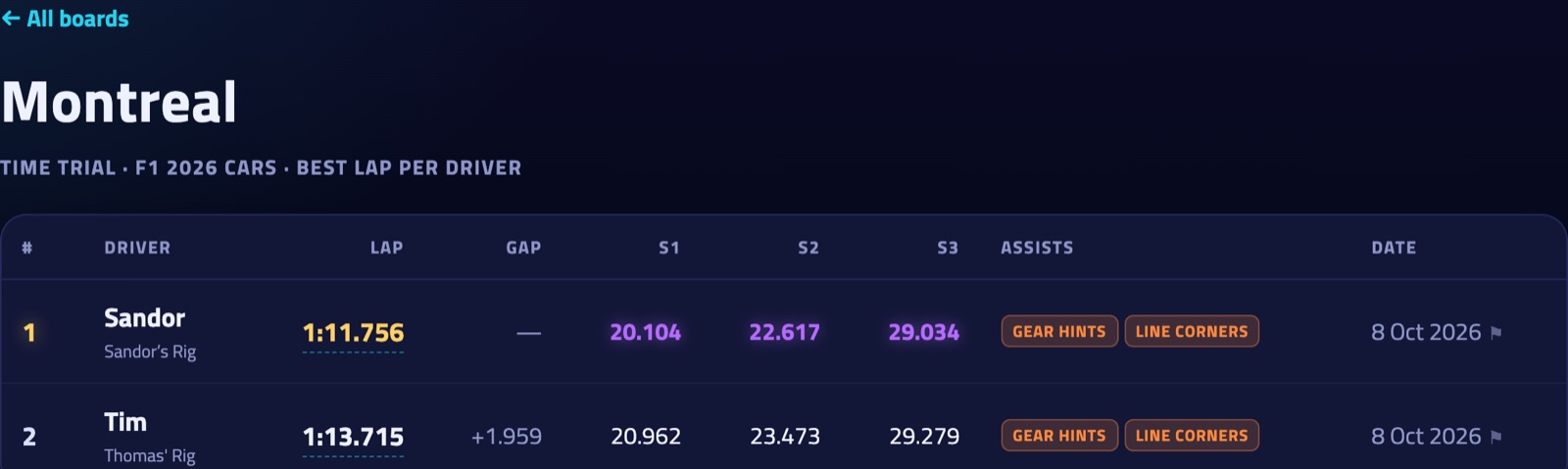
- Sector times on a board: ■ purple is the fastest sector on the board.
- Tracks with more than six sectors: one strip of blocks per driver, a block per sector. Purple is the fastest on the board, the brighter a block the closer to it. Point at a block for its time; the Sector times switch shows every sector as a column.
- GUEST drove without an account. MOD / STOCK: a modded car or track, or one that comes with the game (Assetto Corsa). NO TRACE: a top-10 lap without telemetry.
- Click a time to open the lap.
- When (above the table): all time, or only the laps of this week, last week, this month or last month. Each driver's best lap in that period; weeks run Monday to Sunday, in UTC. A fresh race every week, even when the all-time record is out of reach.
Weekly challenges
Every week the home page picks a few boards that people drove lately, with three target times: 🥉 bronze (5 % behind the board's P1), 🥈 silver (2.5 %) and 🥇 gold (1 %). The targets are set when the week starts and don't move during the week. Laps driven after that count: your best one there is your result; a medal stays on your account and counts for two achievements on your profile (Challenger and Gold standard). Click a challenge to see that week's board. On our Discord the week's challenges are posted on Monday morning and the medal winners on Sunday evening. Not for you? "Hide" next to the challenges switches them off on all your devices (back on under My account → Preferences).
Driver rankings
Drivers (in the top menu) ranks the drivers: distance, time on track, laps, clean laps (valid laps out of all, from 100 laps on), longest day streak, P1s, podiums and top 10s on the boards right now, and weekly challenge medals (gold 3, silver 2, bronze 1 point). Distance, time and laps also have a "This month" view.
- Only if you share it: you're listed when your profile shows that part to Everyone (or to Signed-in players, then signed-in visitors see you): Distance and time for the first five, Positions for P1s, podiums and top 10s, Achievements for medals. Set it under My account → Privacy. Everything starts as only you.
- Signed in, you always see your own figure under the list, also when you're hidden from others.
Driver rating
Your driver rating (0 to 1000) says how close to P1 you are on the boards you drive. It's on your profile with a line of how it moved, and Drivers ranks everyone by it.
- Per board: P1 scores 1000, and every 1 % behind P1 costs 100 points (1 % behind = 900, 5 % = 500, 10 % or more = 0).
- Boards with more drivers count more: a board where you're alone counts nothing, with 2 drivers a quarter, with 3 half, and from 5 drivers on in full. Being fast where it's busy is what counts.
- Your rating is the average of your best 10 boards, counted as at least 5 full boards: a single board can't give you a top rating.
- Tiers: Bronze (from 0), Silver (250), Gold (500), Platinum (700) and Diamond (850). Your profile shows how many points you need for the next one.
- Your rating moves when you set a better lap, but also when others do: someone taking P1 or joining a board changes everyone's score there.
- It's part of Positions on your profile, so it's shown to whoever may see your positions.
Achievements
Your profile (My account → Profile) shows 29 achievements: 🏆 earned, 🔒 still to unlock, with your progress where there's a count. Most are worked out from all the laps you ever drove, so older laps count too. Rival and Comeback count from 11 October 2026 on. Times of day are Dutch time (Amsterdam).
Distance and time
| 1,000 km | Drive 1,000 km |
|---|---|
| 10,000 km | Drive 10,000 km |
| Marathon | 3 hours of laps in one day |
| Century | 100 laps in one day |
| Grinder | 200 laps on one board |
Habits
| Daily driver | Drive every day for a week |
|---|---|
| Regular | Drive every week for a month (4 weeks in a row) |
| Weekend warrior | Drive on the Saturday and the Sunday of one weekend |
| Early bird | A lap between 5 and 7 in the morning |
| Lunch break | A lap at lunchtime (12–1 pm) on a weekday |
| Night shift | A lap between midnight and 5 am |
| Holiday spirit | A lap on Christmas or New Year's Day |
| One year on | Still driving a year after your first lap |
Skill
| Clean sweep | 10 valid laps in a row |
|---|---|
| Metronome | 5 valid laps in a row within 0.2 s of each other |
| On fire | Beat your own best 3 times in one day |
| Purist | 100 laps without traction control or ABS |
| Rain master | A valid lap in the rain (F1 25) |
Racing others
| Record breaker | Hold P1 on a board |
|---|---|
| Podium regular | Be on the podium of 5 boards |
| Rival | Pass a friend on a board where they were ahead of you |
| Comeback | Take back a P1 someone took from you |
| Recruiter | Invite a friend who drives their first lap |
| Challenger | Win a medal in a weekly challenge |
| Gold standard | Win gold in 3 different weeks |
Exploring
| Globetrotter | Laps on 10 different tracks |
|---|---|
| Full calendar | A lap on all 24 tracks of the 2026 F1 season |
| Green Hell | A lap of the Nordschleife |
| All-rounder | Laps in 3 different games |
| Full garage | Laps in 10 different cars |
The lap page
Everything about one lap: sector times, car, conditions, setup (F1 25) and the telemetry. The telemetry (graphs, mini-sectors, map, replay, corner table and coach) is part of Pro; everyone sees the times.
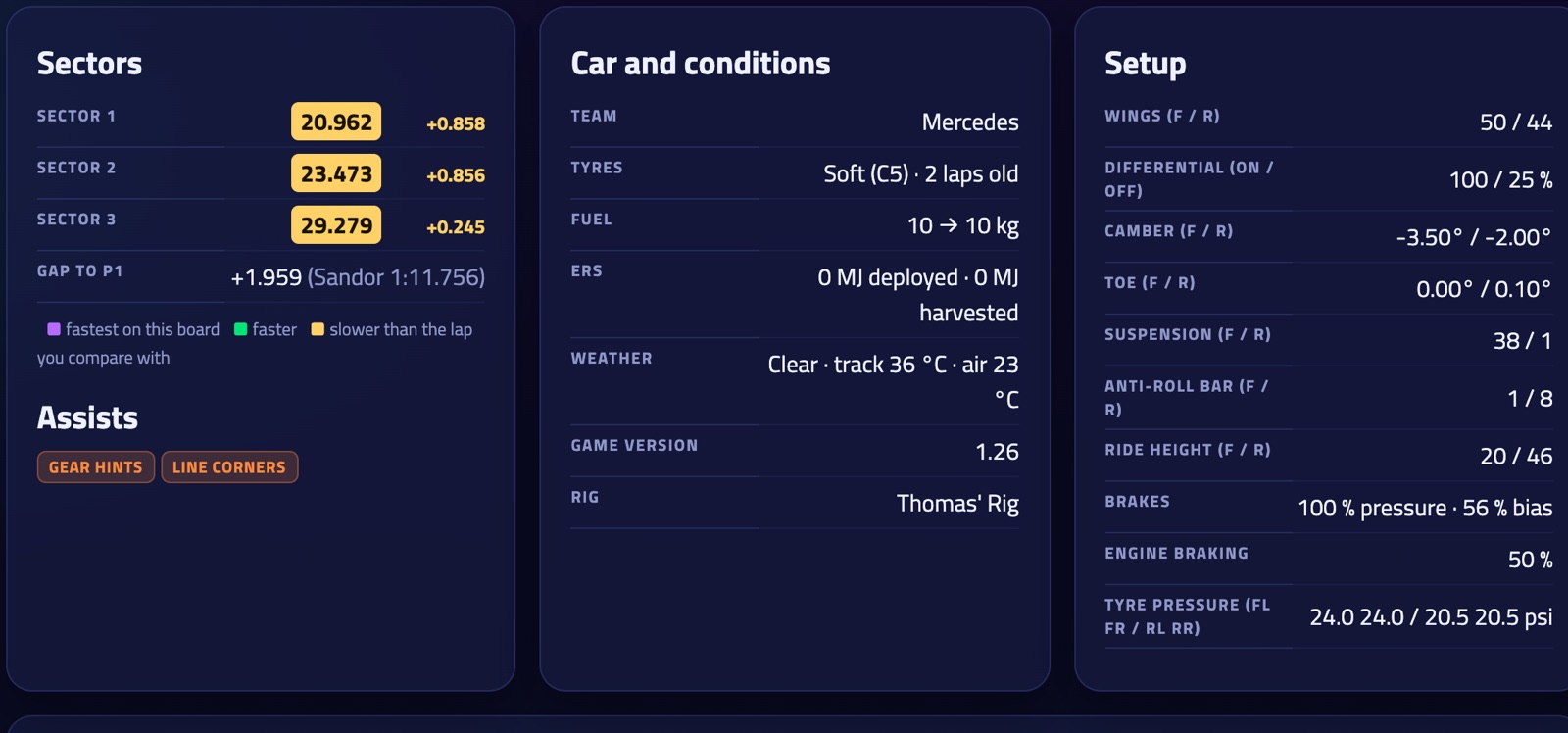
- Sector colours: ■ fastest on this board, ■ faster and ■ slower than the lap you compare with, with the difference.
- Compare with: by default P1 of the board. Pick any lap with telemetry on the same track, also from other boards, or one of your own laps (under "Your laps"). The link in your address bar keeps the comparison, so you can share it.
- Your Time Trial rival (Pro, F1 25): pick a rival in the game's Time Trial and drive a lap while its ghost runs. The Lap Tracker records the ghost's lap too, and your Time Trial laps on that board can compare with it under "Your Time Trial rival": charts, mini-sectors, replay, corner table and the AI coach. The ghost must finish its lap: if you cross the line before it does, try again on a lap where it finishes first. The game sends no name for a rival, and no usable gear or rpm: its speed is worked out from where it is. We keep your last five rivals per board.
- Track map: on Assetto Corsa tracks the map and the 3D replay show the real road, taken from the track's own AI line (the Lap Tracker sends it once, the first time someone drives there). Some F1 25 tracks have one too.
- Best sectors combined: signed in, the sector card shows your theoretical best on that board, your best sectors added up. On your own lap it says how much this lap leaves on the table.
Setups of the fastest laps
Every F1 25 lap carries the car setup it was driven with. On an F1 board, 🔧 Setups shows the setups of the fastest laps side by side, in the order of the game's setup menu, so you can type one over.
- Differences from P1 are marked: +2 means two clicks higher than P1.
- Your own setup (your best lap on that board) sits next to them, so you see what you do differently.
- Copy puts a setup on your clipboard as text, handy for the #setups channel on our Discord.
- The setups of the 10 fastest laps are part of Pro; your own setups are always yours to see, on the lap page too.
My laps: every lap you drove
My laps (in the menu when you're signed in) lists every lap you drove, per board: not only your best, also the slower, invalid and discarded ones, grouped per day.
- Summary: your best lap, your best sectors added up (your theoretical best: what a lap with all your best sectors would be) and your average valid lap. Each day shows that day's best lap and best sectors combined too.
- Sectors: ■ your best sector on that board.
- Compare two laps: tick two laps with 📈 and press Compare. The lap page opens the slower lap against the faster one, with the graphs, mini-sectors, corner table, coach and replay.
- Delete a lap with ✕ at the end of its row. When it's your lap on the leaderboard, your next best lap takes its place. A lap that was reported, or is held for a check, can be deleted once an admin has looked at it.
- Telemetry is part of Pro: your laps on a board always keep theirs, and with Pro every lap you drive keeps its telemetry, from the moment you have Pro. Laps that aren't on a board are private: only you can open them.
My progress: how you develop
My progress (in the menu when you're signed in) shows how you get better over time, one point per day you drove. Pick All boards or one board. My progress is part of Pro.
- Getting faster: your best counting lap per day on a board, your PB over time, today's P1 and how much you found since your first day.
- Fewer mistakes: the share of your laps that were valid (inside the track limits, not discarded), per board or over all boards, how many laps you need before your first valid lap of the day, and in iRacing your incidents per 100 km.
- Technique per corner: every corner of your fastest lap with telemetry per day, against the day nearest to a month earlier: where you started braking (metres before the apex), apex speed, how soon you were back on full throttle, coasting, and the time from 200 m before the apex to 100 m after it. The top lines name the corners where you improved most ("You brake 25 m later into T8 than a month ago").
- Where to find time now: your most recent day's fastest lap against the board's P1, the three corners where you lose most and why, with a button to open both laps on the lap page and ask the AI coach.
- Consistency: how far your laps spread around your average per day, over the laps within 5 % of that day's best (out laps and spins left out).
- Your month: at the start of each month the bell (and the top of My progress) sums up the month before: laps and days driven (also without Pro), and with Pro the share of clean laps, km, new PBs, your biggest step on one board and your rating change. Switch it off under My account → Notifications → Monthly summary.
- The summaries compare your last five driving days with your first five, so one odd evening doesn't decide the trend. Days are in Dutch time (midnight to midnight in Amsterdam).
Graphs and mini-sectors
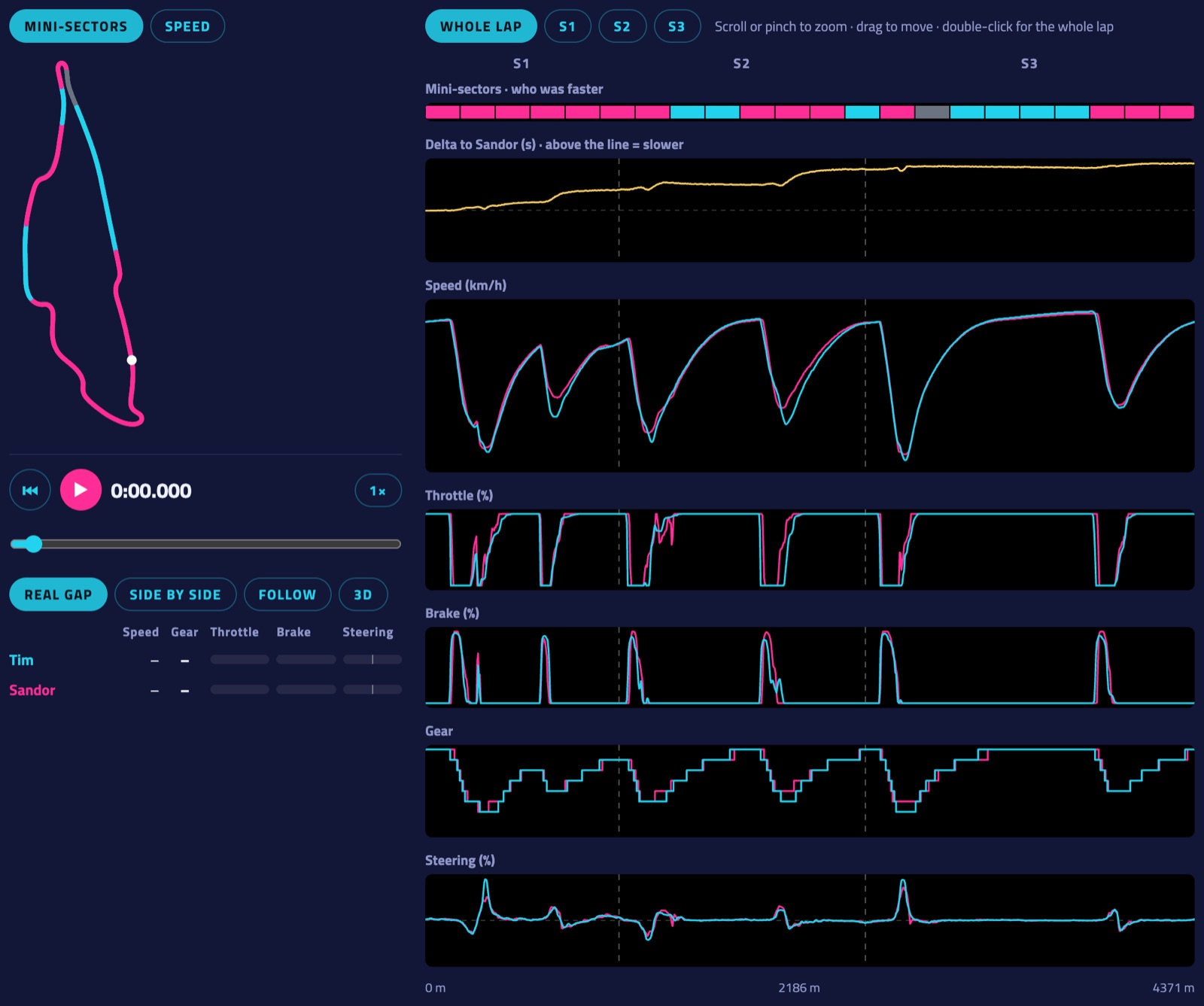
- Zoom: scroll (or pinch on a phone) over the graphs, drag to move, double-click for the whole lap. The S1, S2 and S3 buttons show one sector. The zoomed stretch lights up on the map.
- Pointing anywhere shows both drivers' values in a tooltip and both cars on the map.
- Delta: above the line means slower than the other lap at that point.
- More laps at once (Pro): next to "Compare with", Also show adds up to three more laps as dashed lines in every chart, with a table of their times and sectors; they also drive along in the replay (see Replay). Laps in the same conditions lists laps on this board driven on the same tyres, weather and TC/ABS with the track within 6 °C — a fair yardstick when the track was hot.
- Reactions: under a board lap's title, give it a 🏁 Respect, 🔥 On fire, 🤯 How?! or 😅 Wild one (signed in, not on your own laps). Everyone sees the counts, only the driver sees who.
- Share: the ↗ Share button next to the reactions gives a link to a board lap. Pasted in WhatsApp, Discord or anywhere else that shows previews, it becomes a card with the track, the driver, the time and the position.
- Remarks (signed in): pin a note to a spot on a lap — where to brake, a line to try, what went right. Point at the spot in the charts, write it in the Remarks card and choose who reads it: only you, the lap's driver, or your friends. Diamonds above the charts and on the map show where they are; the driver gets a notification.
- Racing line: how far your line is from the other lap's, metre by metre (above the middle = further left). Where one of you gains time the gap is shaded in that driver's colour, so you see which line paid off. Move over it: in a corner it says wider or tighter, on a straight left or right.
- Car angle: how sideways the car is — the angle between where the nose points and where the car really goes. Up means the nose points further into the corner (the rear is sliding), down means it points out (the front is washing wide). A clean lap stays within a few degrees; compare the peaks with the faster lap. The map's Car angle button colours your line the same way. F1 25 and iRacing (with GPS from telemetry files); Assetto Corsa and AC EVO don't send a usable heading.
- Mini-sectors cut the lap into pieces of about 200 m. When comparing they show who was faster where, in the two drivers' colours (grey: equal). On your own they compare with the fastest time on the board for each piece: purple where you're the fastest. The ideal lap is everyone's best mini-sectors added up.
- Click a mini-sector (on the strip or in the summary) to zoom in on it.
Replay: 2D and 3D
The replay is part of Pro, like the rest of the telemetry.
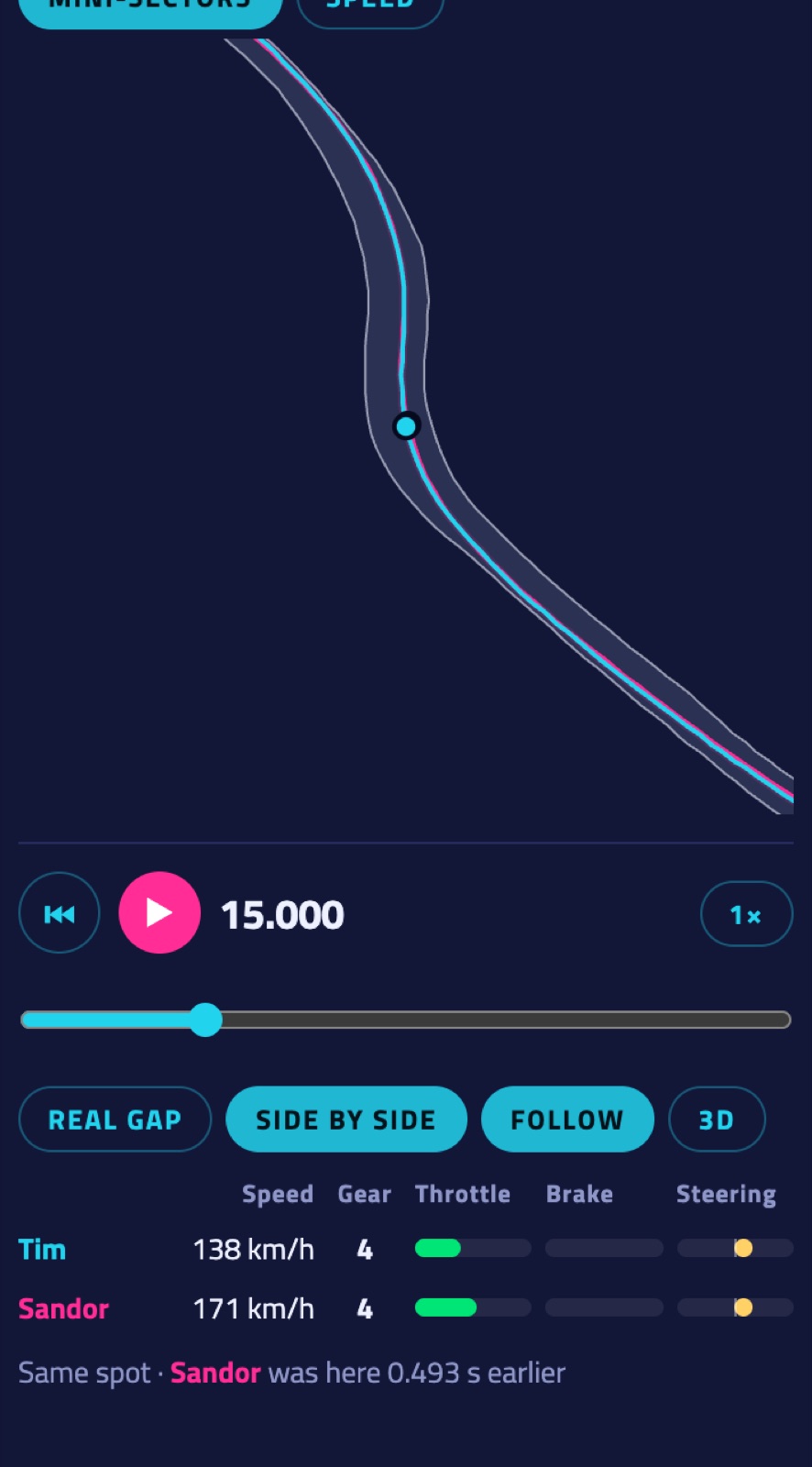
- Play under the map, with ¼× to 4× speed and a slider through the lap. Click in a graph to jump there.
- Real gap runs both laps on the same clock: you see the real gap grow. Side by side puts both cars on the same spot of the track, so you see the difference in line and when each driver got there.
- Follow zooms the map in on the cars, with both racing lines.
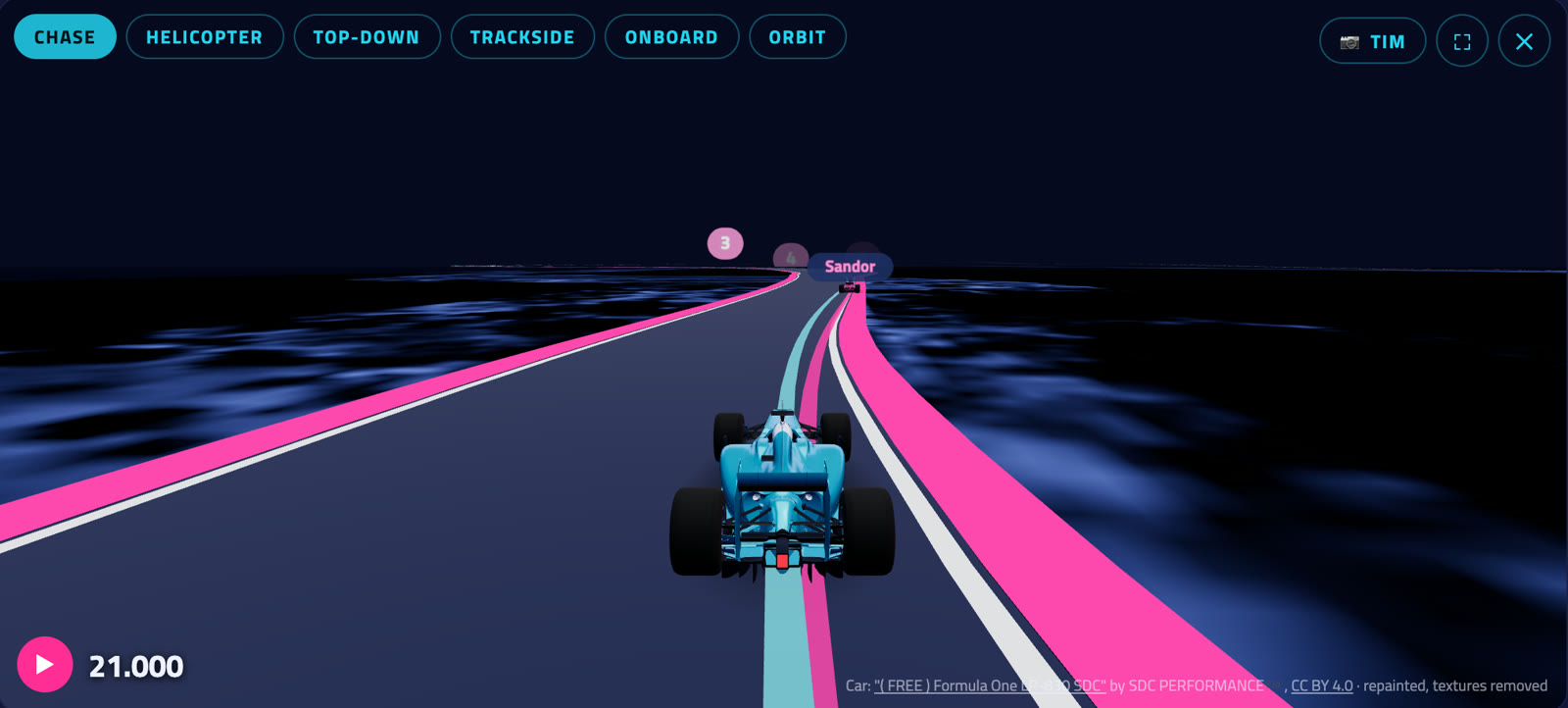
- 3D opens the 3D replay above the graphs. Cameras: Chase (behind the car), Helicopter, Top-down, Trackside (TV cameras along the track), Onboard and Orbit (drag to look around, scroll to zoom). The two names next to the play button pick which car the camera follows; ⛶ is full screen.
- Extra laps you add with Also show (Pro) drive along too: dashed lines and their own dots on the map, and their own cars in 3D.
- Car angle (switch in 3D) colours your line by how much the car slides, in the same colours as the map's Car angle view. F1 25 and iRacing laps.
- The road edges show the mini-sector colours; the pink numbers are the corners from the corner table.
- On tracks whose edges we know (see Track maps) the road has its real edges and kerbs, so you see where on the track each car was. Elsewhere the road is drawn around the driven line.
The corner table
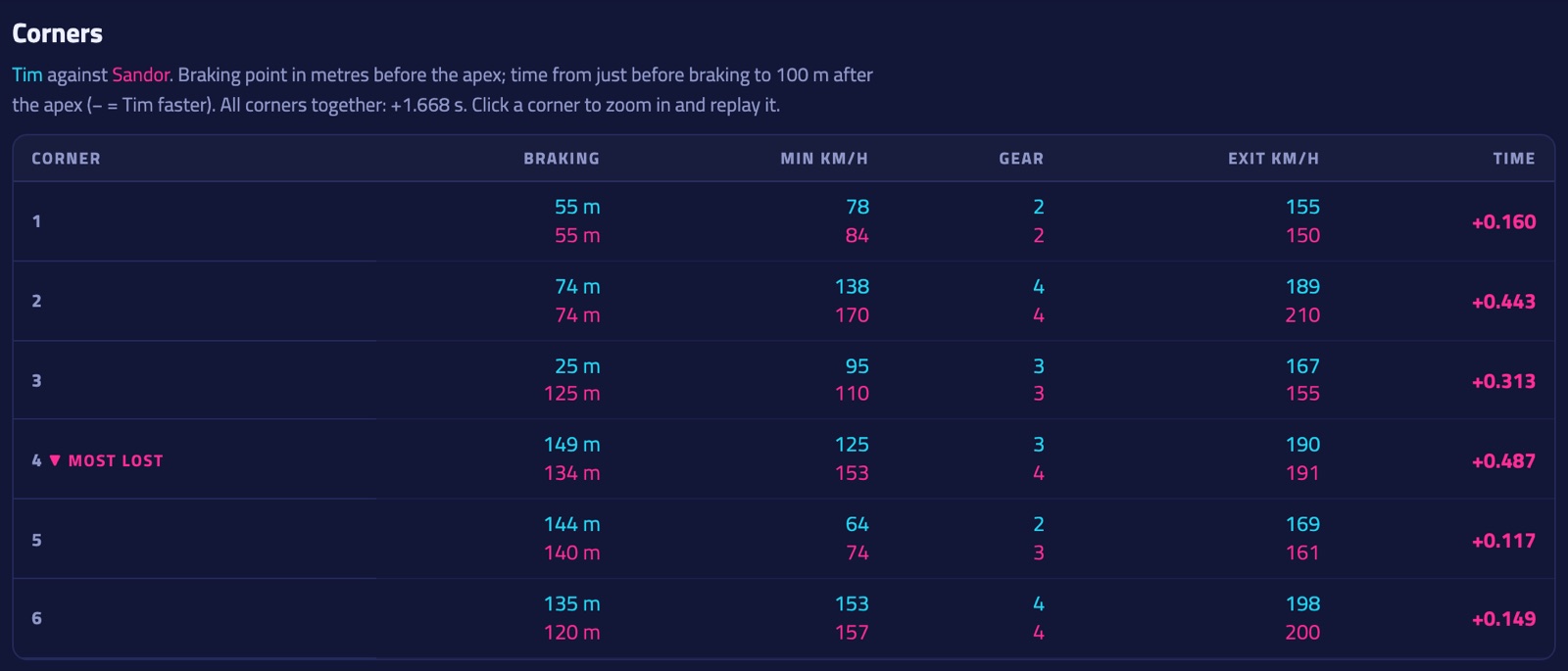
Under the graphs: every corner with both laps next to each other (top line: this lap, bottom line: the lap you compare with, or else the fastest lap on the board).
- Braking: where braking started, in metres before the slowest point of the corner. "lift" means only off the throttle, "flat" means neither.
- Min km/h and Gear at the slowest point, Exit km/h 100 m after it.
- Time: won (−) or lost (+) from just before braking to 100 m after the corner. The biggest gain and loss are marked.
- Turn numbers and names: on the F1 circuits (in every game) the official ones, also on F1 25's reverse layouts (numbered in the order you drive them). Donington Park, Oulton Park, Mugello, Okayama and Tsukuba get the turns from the circuit's map. Other tracks number the corners we find ourselves (C1, C2…).
- Click a corner: the graphs zoom in on it and the replay jumps to just before the braking point. Press play.
- On the map every corner has a numbered bubble with the same time won or lost, in the colour of the faster lap. Click a bubble to jump to that corner; the Corners button above the map hides them.
- Corners are found where the speed bottoms out, so a quick chicane counts as one corner.
- Peak brake: the highest brake pressure in that corner. Well below 100 % usually means you could brake later and harder.
- Balance: how far the car turned into the corner (+, the rear sliding) or pointed out of it (−, the front sliding), for both laps. Under 1° the car was calm.
- Coach tips above the table pick the three corners where you lose the most against the other lap, list what's different (braking point and pressure, coasting, brake and throttle overlap, throttle lifts, steering corrections, less speed at the apex…) and what to try first.
- ✨ AI coach (Pro, 20 a month): an AI reads the same figures plus how you brake, trail brake, coast, steer, use the throttle and shift, and your racing line (turn-in, apex and exit, use of the track width, the straight that follows), and explains per topic what to work on, using common race-driving technique: how long you keep the brakes near their peak, whether you let off and press again, whether you still add steering at the slowest point, how hard you commit to the power onto long straights, and how you handle left-right combinations. Where it fits, it suggests a drill to try on your next laps. It only uses our figures; check its advice in the replay. Pin to the lap under a tip keeps it as a remark at its corner, so it's still there after the coaching is gone.
Telemetry Studio
Telemetry Studio (Elite) puts a lap's telemetry on the whole screen of a computer. Open it with Open in Telemetry Studio on a lap page, or from Telemetry Studio on the home page and in your account menu: pick one of your boards and a lap. On a phone those ways in are hidden: the screen is too small. Point at any button for a short explanation (the Tips switch at the end of the button row turns those off).
- Laps: up to four, each in its own colour. Laps… adds laps from the board, your own laps, your Time Trial rival or the board's ideal lap (the fastest piece of every mini-sector joined into one lap). Click a lap's name to make it the reference: the gap and the line are measured to it. × takes a lap out; on the first lap, the next lap takes its place.
- Charts: the channels one above the other, along the track (distance) or against the clock (time). Pick a ready-made set under Channels (Braking, Corner exit, Shifting, Grip, Line…; the button shows which one is on), or tick your own channels and their order there, and make a channel from a formula. Scroll to zoom, drag to move, double-click for the whole lap. Click for cursor A, shift-click for B: the side panel shows the figures between them per lap (Esc clears them). The dashed grey lines, marked S1 | S2 at the top, are where the sectors end.
- Notes: coach tips, the AI coach's advice, remarks and lock-ups as marks above the charts and on the map. Walk me through it goes through them, biggest loss first. Clicking one marks its spot with a line; × on its card (or Esc) closes it again.
- Views: Corner focus (one corner up close), X-Y (one channel against another, like the g-g circle), Histograms, Consistency (your last 10 or 20 laps on the board, corner by corner: where your laps differ most, with Best and worst to put your fastest and slowest lap through a corner on the charts) and Setup (the setups side by side).
- Replay: play the laps on the map, at the real gap or side by side, and in 3D.
- Detailed F1 telemetry: laps you drive in F1 25 with Elite also record wheel slip, tyre and brake temperatures and pressures, ride height and suspension, g-forces, the battery and fuel, about 30 times a second. Those laps get the Wheels, Tyres, Energy and Suspension sets, lock-up marks, a shaded band where the tyres work best (surface 85–110 °C, core 90–105 °C) and the wear and damage per lap under Setup. ERS above the track map colours the lap where the battery is used (orange) and recharged (green), with how much of each. Set the game's UDP Send Rate to 60 Hz.
- Share copies a link that opens Studio just like you see it; CSV downloads the laps. The keyboard button lists the keys (space plays, ← → steps through the corners, 1 2 3 picks a sector).
Track maps
The maps on the lap page and in the 3D replay show the real edges of the track where we know them. For F1 25 we measure them ourselves: the game reports which surface each wheel is on, so every lap that touches a kerb or the grass tells us exactly where the edge is. Every lap counts, valid or not: the laps where someone runs wide are the most useful. Once enough laps came in, a track switches from the drawn road to the measured one, with the kerbs (red and white, where wheels rolled over them) and the pit lane (from laps that went through it).
Tracks (in the top menu) is our track database: every track you drive, with how far its map is. A track's own page shows the map with each edge coloured by what confirmed it (grass, kerb, or only where cars drove), how many laps and how much of each edge it still needs before lap pages use it, the turns, and every board driven there. Assetto Corsa tracks bring their own AI line, which already knows the road's width: the first rig that drives one sends it, and that is its map.
Each track page also has At a glance (the newest record there, the one that has stood the longest and the busiest board) and, for real circuits, a short History: when it was built, how it changed, and the races and moments it is known for.
Only positions and wheel surfaces are used, never times or names. Montreal also has a background image from open LiDAR data (Ville de Montréal).
Your account and notifications
Click your name at the top right for My laps, your public profile and your settings. The settings page has a menu with its sections: Profile, Rigs, Friends & groups, Notifications, Preferences, Plan, and Account & data (where you can also delete your account).
- The bell shows new records on the site (the same ones as our Discord), when someone takes your P1, friend requests and group invitations, and new features. Clear one with its ×, or swipe it sideways on a phone; "Clear all" empties the bell. Requests and invitations stay until you answer them.
- Metric or imperial under My account → Preferences (or "Units" at the bottom of every page): mph, feet, miles, °F and lb instead of km/h, metres, kilometres, °C and kg. The AI coach follows it too. Tyre pressures stay in psi, like in the game.
- Dark or light under My account → Preferences (or "Colours" at the bottom of every page): the same as your phone or computer (the default), always dark or always light. The 3D replay and the leaderboard cards stay dark.
- Look under My account → Preferences: Standard (black and grey with red; follows the colours setting), Neon (the first SIM Leaderboard look: deep blue and purple with pink and cyan) or Timing tower: black and yellow like a trackside timing screen, P1 in purple, lap times in a typewriter font. The switch at the bottom of every page takes you back to the standard look.
- Your PBs on the home page: your best lap on the boards you drove last, your position and the gap to P1. Tap one to open that leaderboard. "Hide" switches it off (back on under Preferences). The weekly challenges have their own "Hide".
- Order of the leaderboards: "Order" above the boards, or under My account → Preferences: latest activity, the 2026 season calendar, where you drove last, newest P1, or A–Z.
- Cards or rows: the switch next to Order shows the boards as big cards with the track picture, or as compact rows without pictures so more fit on the screen. Signed in, your choice holds on all your devices.
- Mods: boards on tracks or cars that come from a mod carry a MOD tag, such as F1 25 laps on Paul Ricard, Sochi, Mugello or Autopolis. The "Mods" switch above the boards (or under My account → Preferences) hides them.
- More preferences under My account → Preferences: the F1 car class the boards open on, who a board shows (everyone, you and your friends, or a group), games to hide from the home page, sector times in the board table on phones, and the lap a lap page compares with (P1, your own best, or the next driver up).
- Start page under My account → Preferences: open the site on the leaderboards overview, or straight on the leaderboard you viewed last (remembered per device).
- Switch categories off under My account → Notifications. Friend requests and group invitations always show: they wait for your answer.
- Monthly summary by e-mail: switch it on in the same place and you get your last month in numbers on the 1st of every month, at the address you sign in with. Off by default; every mail has an unsubscribe link.
Profile, friends and groups
Under My account → Profile you fill in your profile: a picture, a few words about you, your rig, favourites and gamer tags. All optional. Your stats are worked out from your laps: kilometres and hours driven, clean laps, day streaks, P1s and podiums, favourite track and car, and achievements to unlock: from kilometres and records to habits like Daily driver, Weekend warrior or Metronome: see all achievements.
- Who sees what (My account → Privacy): per item you pick everyone, signed-in players, friends, your groups or only you. Everything starts as only you, so nothing is shown until you choose.
- Your driver name is on the boards for everyone, or for signed-in players only: then the rest of the world (visitors, search engines, shared links, Discord) sees your initials. See Privacy.
- Friends: search a driver by name or press Add friend on their profile (click a name on any board). They accept, and you're friends. You can remove a friend or block a player at any time.
- The bell at the top of every page shows friend requests and group invitations (accept or decline them right there), and lets you know when someone accepted your request or joined your group.
- Groups: your regular crew, like the friends you race with on Friday night. Make a group, invite friends, and they join with one click. Free accounts can make one group, Pro up to 20; joining is always free.
- Boards with just your crew: at the top of every board, pick Me and my friends or one of your groups. The ranking, gaps and sectors then only count those drivers.
- Invite friends: My account → Friends & groups has your own invite link. A friend who makes an account with it, or joins your rig with its QR code, counts as your invite. While new accounts are closed, your invite link still lets 3 friends in (the card shows how many are left), and so do a rig's join code and a guest's claim link. Once one of them drives a lap you're a Recruiter. Each invited friend who becomes a paying Pro member earns you a free month of Pro (up to 12 a year), 14 days after their first payment.
Rigs and friends
- Your rigs are under My account → Rigs.
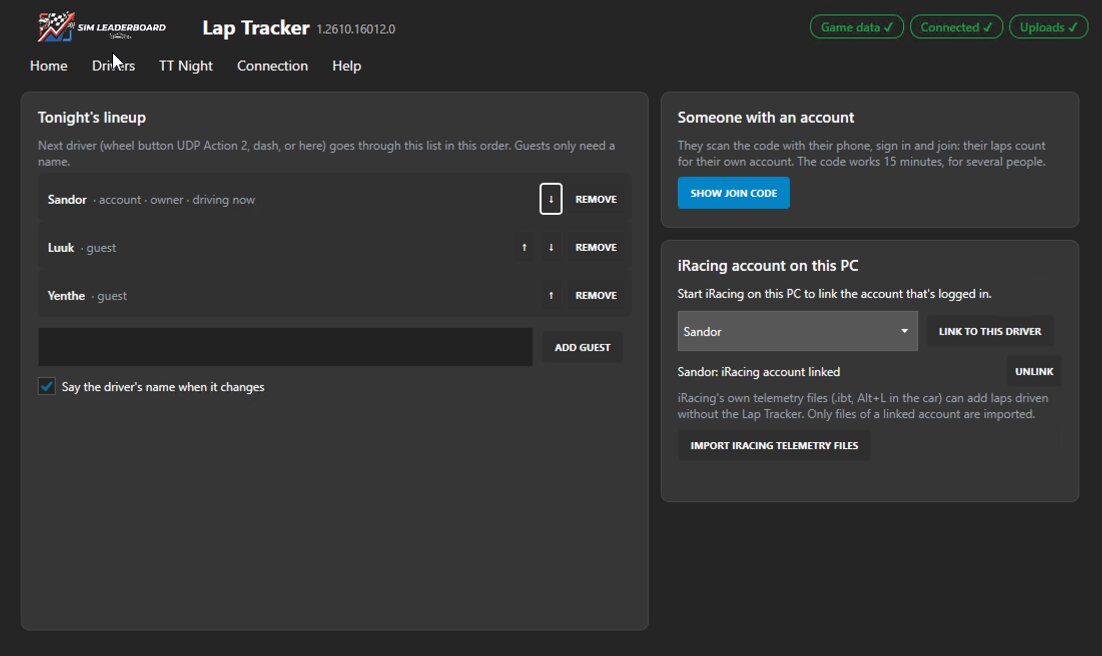
- Friends with an account: in the Lap Tracker's Drivers tab click Show join code. A QR code appears; your friend scans it, signs in and taps Join. From then on they can drive on your rig as themselves. Friend not at your rig? Send them a join link instead: My account → Rigs → Drivers on this rig → Join link (it works for 7 days).
- Guests are added by name in the same tab (Add guest). Their laps show with a GUEST badge. Send a guest a claim link and their laps move to their account once they sign up: the SIM Leaderboard app shows a QR per guest on its Home tab after a session, and the bell reminds you the morning after. You can also make one under My account → your rig → Drivers on this rig. The link shows the guest their laps and best times before they sign up.
- Removing someone from your rig: My account → your rig → Drivers on this rig. Their laps stay.
- Rig status: under each rig you see when its Lap Tracker was last running, its version, laps still waiting to upload and anything that needs fixing (see Troubleshooting).
Fair play
Laps are checked on upload, so the boards stay honest:
- The telemetry of a lap has to match its time: the whole lap driven, no impossible speeds, the end lining up with the lap time. A lap that doesn't fit is taken off the board.
- Each track has a minimum time (in Assetto Corsa and EVO per car class: GT3, GT4, formula cars…). A faster lap waits for a review by an admin before it counts.
- A lap that is suddenly far ahead (more than 5 % faster than every other driver on the board, or a 4 % jump on your own best after many laps there) also waits for a quick review. Usually it's just kept.
- Something looks wrong? Use the ⚑ button next to the entry on the board (signed in). An admin looks at it.
Privacy and your data
- The boards show your driver name and your laps. Your e-mail address and your game account name are never shown.
- Who sees your name: under My account → Privacy pick Everyone or Signed-in players only. With the second, visitors, search engines, shared lap links and Discord record posts see your initials (like "T. G."). Guests always show as initials to anyone who isn't signed in.
- Delete your account under My account → Account & data: your laps, telemetry and profile are removed. Details in the privacy statement.
Troubleshooting
- Start at My account → Rigs. Each rig's Lap Tracker tells us how it's doing (when it starts, when something changes and every half hour): laps waiting to upload, a port another program took, a telemetry format the game shouldn't send, iRacing settings that stop it sharing data. Anything that holds up your laps is listed there with the fix, and on the home page until it's solved. A rig that's simply switched off is fine.
- A Windows warning when installing: the installer is signed by SIM Leaderboard. Check that Windows shows that publisher, then choose Run anyway (Edge: Keep).
- No F1 25 data: in F1 25's telemetry settings turn UDP on, IP 127.0.0.1, port 20779 (the app's). Data coming through SimHub instead: in SimHub, forward it to 127.0.0.1:20778. On rigs with a MOZA wheel use the 2025 UDP format; the app passes the data on to Pit House (Settings → Pass F1 25's data on). The setup steps on the app's Home tab tell you what's missing.
- Assetto Corsa, AC EVO or iRacing: no game settings needed; the app reads them straight from the game.
- A lap isn't on the board: was it valid (see Which laps count)? Was it your best on that board? Laps recorded offline upload as soon as the PC is online again.
- The phone dash doesn't open: phone and PC on the same Wi-Fi, and Windows calling that network Private. The app's Connection tab checks the firewall and can repair its rule.
- The phone dash asks to be allowed (SIM Leaderboard app): so nobody else on the Wi-Fi can press its buttons, a phone needs the PC's OK once. Scan the QR code on the PC, or press a button and click Allow on the app's Home tab. The phone remembers it, also from its home-screen icon.
- Something else? Ask the rig owner, or press Send logs under the app's Help tab (in the SimHub plugin: Send logs and recordings) and tell us in #help on Discord. It sends only the Lap Tracker's lines and SimHub's warnings from the log, plus any game recordings; your Windows user name is left out.